
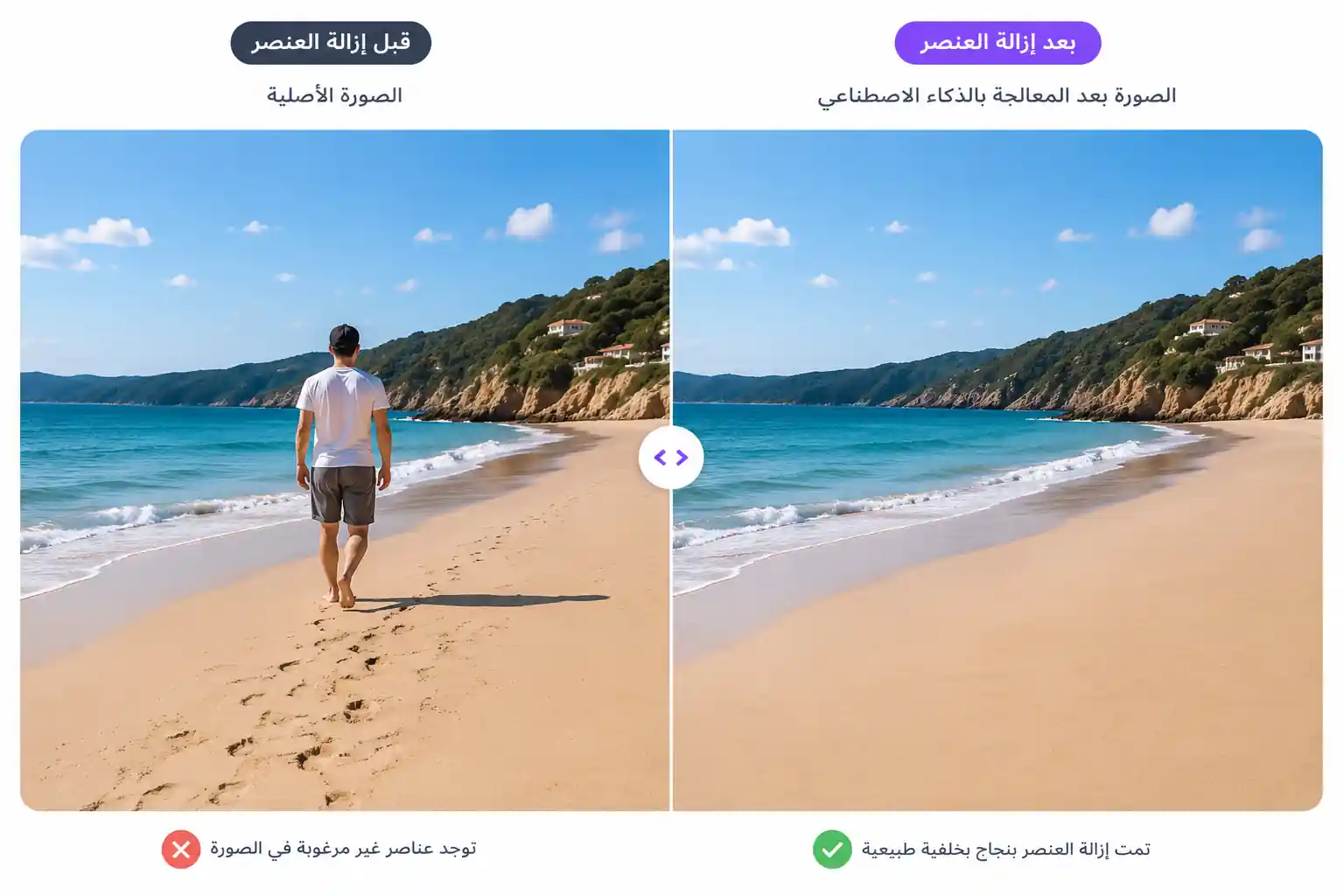
Remove unwanted people while AI attempts to reconstruct the background behind them.
AI IMAGE TOOL
AI Object Remover – Remove Unwanted Objects from Photos
Remove unwanted objects, people and text from photos with AI and automatically reconstruct the background for clean, natural and professional results.
One free trial: You must sign in to use the free trial. The free result includes a NUJIZ watermark.
✓ One free trial✓ Secure AI processing✓ Paid results are watermark-free
✓
Clear interfaceSimple steps and a direct result
⚡
Fast performanceBuilt for mobile and desktop
◈
Privacy firstProcessing stays on your device
🎁 One free trial
You must sign in. The free result includes a NUJIZ watermark
💳 $1 = 5 uses
Paid results are watermark-free
SELECTED TOOL
One free trialAI Object Remover – Remove Unwanted Objects from Photos
Dimensions—
File size—
Format—
Remove Objects from Photos with AI
Nujiz AI Object Remover helps you remove unwanted objects, people, text and distractions from photos. Brush over the object you want to remove and AI reconstructs the surrounding background for a clean, natural and professional result.
Before & After
Compare Your Photo Before and After AI Removal
After processing an image, an interactive before and after comparison will appear here automatically.
What Can You Remove from a Photo?
Delete cars, furniture, signs and distracting objects from your images.
Brush over unwanted text and reconstruct the surrounding image area automatically.
Remove distracting details for cleaner and more professional-looking photos.
How to Remove an Object from a Photo
Select an image containing the object you want to remove.
Precisely mark the unwanted object with the selection brush.
AI removes the selected area and reconstructs the background.
Tips for Better AI Object Removal
- Cover the complete object and slightly overlap its edges.
- Avoid selecting large areas of unaffected background.
- Use a smaller brush for fine details.
- Simple and repetitive backgrounds usually produce cleaner results.
- Use the eraser to refine the mask before processing.
AI Object Remover for Unwanted Objects, People and Text
Whether you need to remove an object from a photo, remove a person from an image, delete unwanted objects, remove text from an image or clean a photo background, Nujiz AI Object Remover provides a simple workflow powered by artificial intelligence.
AI Object Remover FAQ
How do I remove a person from a photo?
Upload your photo, brush over the person and apply AI removal. The tool attempts to reconstruct the background behind them.
Can I remove text from an image?
Yes. Mark the unwanted text with the brush and process the image to remove it and reconstruct the surrounding area.
Can I remove multiple objects?
Yes. You can mark multiple unwanted areas before processing the image.
Why does removal quality vary?
Results depend on object size, selection accuracy, background complexity and the visual information surrounding the object.
How can I get a more natural result?
Select the object closely with only a small margin around its edges and avoid masking large areas of useful background.